
You’ve written the same squat program in your Notes app three times this week because you never set up a system to reuse it. Google Sheets workout templates for personal trainers solve exactly that.
One master framework, duplicated per client, shareable in seconds, editable from their phone between sessions. No subscription. That’s why it’s the default starting point for most independent trainers and early-stage online fitness coaches.
Below, you’ll find a free copy-ready template, plus a walkthrough on how to set it up, what to include, and when you’ll eventually need something more.
Key Takeaways
- A functional workout template includes a client profile tab, a structured exercise log, a progressive overload rule written directly into the sheet, and a notes column.
- The fastest way to get started is to copy an existing framework and customize it per client. Once your master template is built, duplicating it for a new client takes under a minute.
- Google Sheets is the right tool when you’re managing fewer than 10–15 clients and don’t yet need automation, in-app messaging, or built-in exercise video delivery.
Why Personal Trainers Still Rely on Google Sheets
Dedicated training software gets a lot of attention, but most independent trainers still open a spreadsheet when a new client signs on, and there are good practical reasons for that.
- It’s free and familiar: Most trainers already use Google Workspace for email and file storage, so a spreadsheet fits into that existing setup without friction. Plus, there’s no invoice at the end of the month, and no software rep to onboard you.
- Programs are shareable and accessible in real time: You send a client their program with a single link. They tap it, it opens on their phone, and they’re looking at their session. You can even update a session mid-week, and the client sees it immediately without you sending a new file.
- Templates duplicate in one click: Build a master template once, and copying it for a new client takes under a minute. Version history logs every change automatically, so overwriting a client’s data by accident isn’t something you need to worry about.
- It works at low client volume: For a personal trainer managing fewer than 10–15 clients, a well-structured spreadsheet genuinely covers the workflow.
Free Google Sheets Workout Template for Personal Trainers
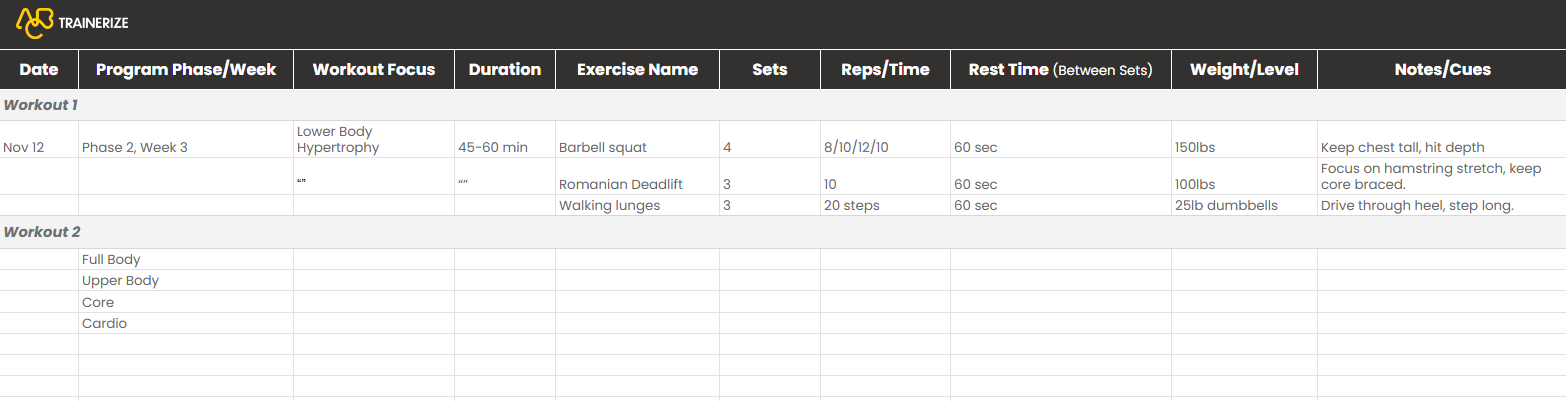
The template below gives you the bones of a client program: the session layout, progression logic, and the client notes section. Copy it, rename it with your client’s name, and swap in the client-specific modifications before sending it to anyone.
What Goes into a Google Sheets Workout Template That Actually Works
Building a workout spreadsheet is easy. But building one that still makes sense six months later is a different problem entirely.
Five components make the difference, and most trainers are missing at least two of them.
1. Client Profile and Assessment Tab
Think of this tab as the brief you write before you touch a single exercise. Capture the client’s primary goal, along with any constraints that make it harder to achieve. A fat-loss client with a knee injury needs that detail in the sheet from day one. Cover training history, available equipment, session frequency, and any movement limitations or medical flags.
2. Session Structure and Weekly Schedule
Record the training days, session length, and chosen split here, and keep it readable in under thirty seconds. The split you choose shapes everything downstream, so lock it in here before you build anything else.
- A 3-day full-body split works well for a beginner gym-goer or any client with limited availability.
- Upper-lower and push/pull/legs splits suit an intermediate lifter training 4–5 days a week.
3. Exercise Log with Sets, Reps, Load, and RPE
Each session row needs five columns: exercise name, sets, reps, prescribed load, and an RPE (rate of perceived exertion) scale field (1–10).
For online fitness coaches, the RPE column is especially valuable because it lets you see session performance data without being in the room. So, let’s say a client who logs a 9 RPE on a set programmed at 7 is telling you something you need to act on before the next session.
4. Progressive Overload Scheme
Write the overload rule directly into the sheet. You can automatically calculate training volume and progressive overload week over week by pairing this rule with a volume column. Here’s a reliable starting point: if a client completes all target reps with good form across two consecutive sessions, increase the load by 2.5–5 kg.
To add, plan a deload week every four to six weeks. Cut volume by roughly 40–50% for one week before moving into the next training block.
5. Progress Tracking and Notes Column
Add a training notes column for session observations: form issues, energy levels, and anything the client mentions before the warm-up.
If body composition is part of the goal, create a separate body-measurement tracker tab. You can visualize client progress through built-in charts and conditional formatting. Just set up an auto-populated progress graph that tracks volume load (sets × reps × load) per session, and just update it at consistent intervals.
A volume load graph is the clearest single metric for showing a client, in plain terms, that the program is working.
Grab your copy here: Personal Trainer Workout Plan Template
How to Set Up Google Sheets for Client Programming
The template structure gets you halfway there. The setup is what makes it actually usable across multiple clients without turning into a maintenance job. Three configurations inside Google Sheets will save you more time than any other part of this process.
Add Drop-Down Lists for Exercise Selection
Use Google Sheets’ data validation feature to add drop-down lists for exercises to speed up program creation. To create a drop-down list in Google Sheets:
- Open Data
- Data Validation
- Dropdown
Build a master exercise list on a hidden tab and feed it into every client sheet. This prevents naming inconsistencies across sheets. Here are Google’s official instructions for setting up data validation.
Use Conditional Formatting to Flag Progress
Apply conditional formatting rules to highlight cells where a client hits their target reps for two consecutive sessions, which is the trigger point for a load increase. Go to Format → Conditional Formatting and set a rule that fills the reps cell green.
A green fill on the reps column when the value meets or exceeds the target makes the progression rule visible and immediately actionable. You can review ten client sheets in five minutes when the flags do the reading for you.
Google’s conditional formatting guide covers the setup step by step.
Duplicate and Organize by Client in Google Drive
Cloud-based storage enables real-time collaboration between trainer and client via Google Drive sharing. Follow these steps:
- To onboard a new client, right-click the sheet tab → Duplicate, or copy the file directly in Google Drive and rename it.
- Organize sheets in a shared Google Drive folder by client name: one folder per client, with their program, intake form, and notes all in the same place.
- Share a view-only or comment-access link so clients can open their weekly workout plan from any device.
Three Template Structures for Different Client Goals
One master template won’t fit every client you take on, and trying to force it to will cost you more time than building separate structures from the start. These three structures cover the most common client types:
Beginner and Weight Loss Template
A 3-day full-body split is the most practical starting point for a beginner gym-goer or someone returning after a break. Keep the exercise count low. Ideally, four to five movements per session. The goal here is adherence, not optimization.
Simplify rest tracking, and add a basic habit log: “Completed session: Yes / No.”
Strength and Hypertrophy Template
An upper-lower or push/pull/legs split across four to five days suits this client type. The template needs dedicated load tracking per set (not just per exercise), an RPE field, and a running volume load tracker that updates as sessions are logged.
Try this structure that you can build directly into the tab system: a hypertrophy training block of six to eight weeks, followed by a deload week, then a strength training block.
Online Coaching Multi-Client Tracker
This template needs a master index tab that lists all active clients, their current program phase, and the date their sheet was last updated. Each client gets their own tab or linked sheet within the same Drive folder.
The key addition for online coaching is to embed links to exercise demonstration videos (YouTube or Loom) directly in the notes column. The online fitness coach isn’t in the room to correct a squat, so the program has to carry that responsibility in writing.
Here’s how to design templates that hold a client’s attention throughout a program, and not just the first two weeks.
Google Sheets vs. Dedicated Training Software: A Practical Comparison
Google Sheets and dedicated training software aren’t competing for the same job. They’re tools for different stages of a coaching business. It’s just that confusing the two is what leads trainers to either overpay for software they don’t need or stay on spreadsheets longer than they should.
This comparison cuts through the noise and maps out exactly where each one earns its place.
| Google Sheets | Training Software
(e.g., ABC Trainerize) |
|
| Cost | Free | Monthly subscription |
| Setup time | 1–2 hours to build master template | Guided onboarding and templates pre-built |
| Client delivery | Share link via email or message | In-app delivery with push notifications |
| Progress tracking | Manual charts and conditional formatting | Automated progress graphs and check-ins |
| Exercise demos | Video links added manually to notes | Built-in video library with 2,000+ native and custom uploads |
| Works best for | Solo trainers managing under 15 clients | Coaches scaling beyond 10–15 clients |
| Limitation | No automation and no client-facing app | Monthly cost, onboarding time |
Most trainers use Google Sheets until they reach 10–15 clients and start feeling the strain of delivery and tracking. That’s the signal to look at dedicated software.
Ready to Scale Beyond Spreadsheets? Start With ABC Trainerize
At some point, you realize the spreadsheet isn’t the bottleneck; you are. You’re the one manually updating twelve sheets, chasing clients to open a Drive link, and writing the same check-in message for the fifth time this week.
Trainerize takes that work off your plate.
- The AI Workout Builder generates ready-to-assign programs based on client goals, equipment, and training style. All in minutes.
- Your programs land directly in a client-facing app, with push notifications, in-app messaging, and session logging already there when your client opens it.
- And when you want to run the same program for 20 clients without it feeling like a copy-and-paste job, the master template system handles delivery while you handle coaching.
The spreadsheet got you here. Trainerize gets you to the next level.
Start your free day trial today. No credit card required.
Frequently Asked Questions
Is Google Sheets good for personal training clients?
Yes. For up to 10–15 active clients, Google Sheets handles the job well. It provides a professional, branded client deliverable at zero software cost, and clients can open it on any device via a shared link without downloading anything. The limitation is manual workload: updating, tracking, and delivering programs across multiple sheets compounds quickly.
How do I build a workout program in Google Sheets?
- Start with five tabs: Client Profile, Weekly Schedule, Session Log, Progress Tracker, and Notes.
- In the Session Log, create columns for exercise name, sets, reps, prescribed load, an RPE (rate of perceived exertion) scale field (1–10), and trainer notes.
- Write the progression rule directly on the sheet. For reference, the standard starting point is that if a client completes all target reps with good form across two consecutive sessions, you increase load by 2.5–5 kg.
- Use Data Validation for drop-down list (exercise selection) and conditional formatting to flag when a client is ready for a load increase.
Can I share a Google Sheets workout template with multiple clients?
Yes. Google Sheets allows trainers to duplicate a master template for every new client in seconds: right-click, duplicate, rename, and share via a Google Drive link with view or comment access. Just make sure to organize each sheet in a folder by client name or program phase so your Drive stays manageable as your roster grows.
When should a personal trainer move from Google Sheets to training software?
When admin time starts eating into programming time, which is typically around 10–15 active clients, that’s the signal. Google Sheets reduces admin time by centralizing program design and progress tracking, which a spreadsheet can’t do automatically.
Can clients log their own workouts directly in a Google Sheets template?
Yes. Google Sheets allows clients to log their own sessions on mobile via the app by sharing the sheet with edit or comment access. The practical problem is consistency: Google Sheets has no notification system, so clients who don’t log in without a reminder usually won’t log in at all.
Do I need to know formulas to use Google Sheets as a personal trainer?
No. The core workout template (exercise log, sets, reps, load, and progression rule) requires no formulas at all. Data Validation and conditional formatting are both point-and-click features. Volume load calculations are the one area where formulas add value, but even then, Google Sheets’ built-in chart tools require no formula knowledge to use.